Assigning Skills to Courses and Assets
As a Superadmin, you can decide whether users and Power Users will be able to see all the skills populating your Platform Catalog when assigning skills to courses and assets.
In the platform Admin Menu, click on Advanced Settings in the E-learning section, then reach the Skills Management tab. Select the Enable full catalogue visibility for users and Power Users option.
If the option is not flagged, when assigning skills to courses and assets, users and Power Users will only see the skills they have visibility on.
Assigning Skills to Courses
In order to assign skills to a course, move to the Course Management area of the Admin Menu, identify the course in the Course Management page and click on its description to enter in edit mode. Move to the Properties tab, Details vertical tab, and Assigned Skills area.
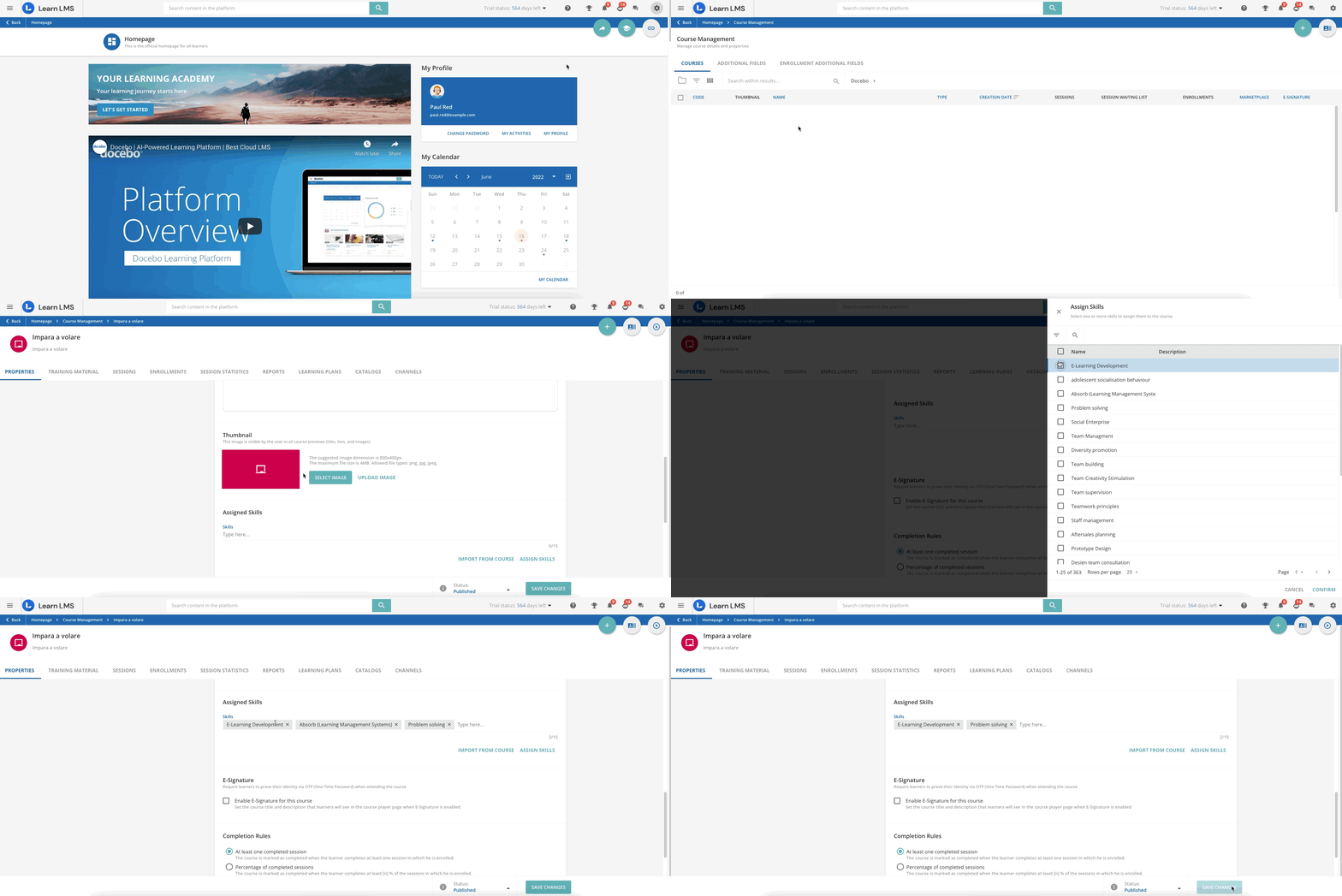
From here, you can either manually add skills to the course, or import the skills assigned to another course of the platform. You can associate up to 50 skills per course.
- Add Skills Manually. In order to add skills manually, click Assign Skills, then select the relevant skills from the right panel. Use the panel filters to drill down skills according to your needs. Click Confirm to complete your action.
- Import Skills From Another Course. Click on Import from Course and select the course from which you want to import skills in the right panel that will open. Click Confirm to proceed.
Please note: If your Platform Catalog is empty, when adding skills manually you will pick them directly from the Docebo Skills. If the Platform Catalog is populated, the Show only Platform Catalog skills filter will be automatically flagged, so that you will only see the skills you have added to your catalog.
Assigning Skills to Assets
In order to assign skills to an asset, after uploading it with the Share Content functionality, click on the ellipsis menu at the end of the asset area in the Share Content page and click Edit Asset.
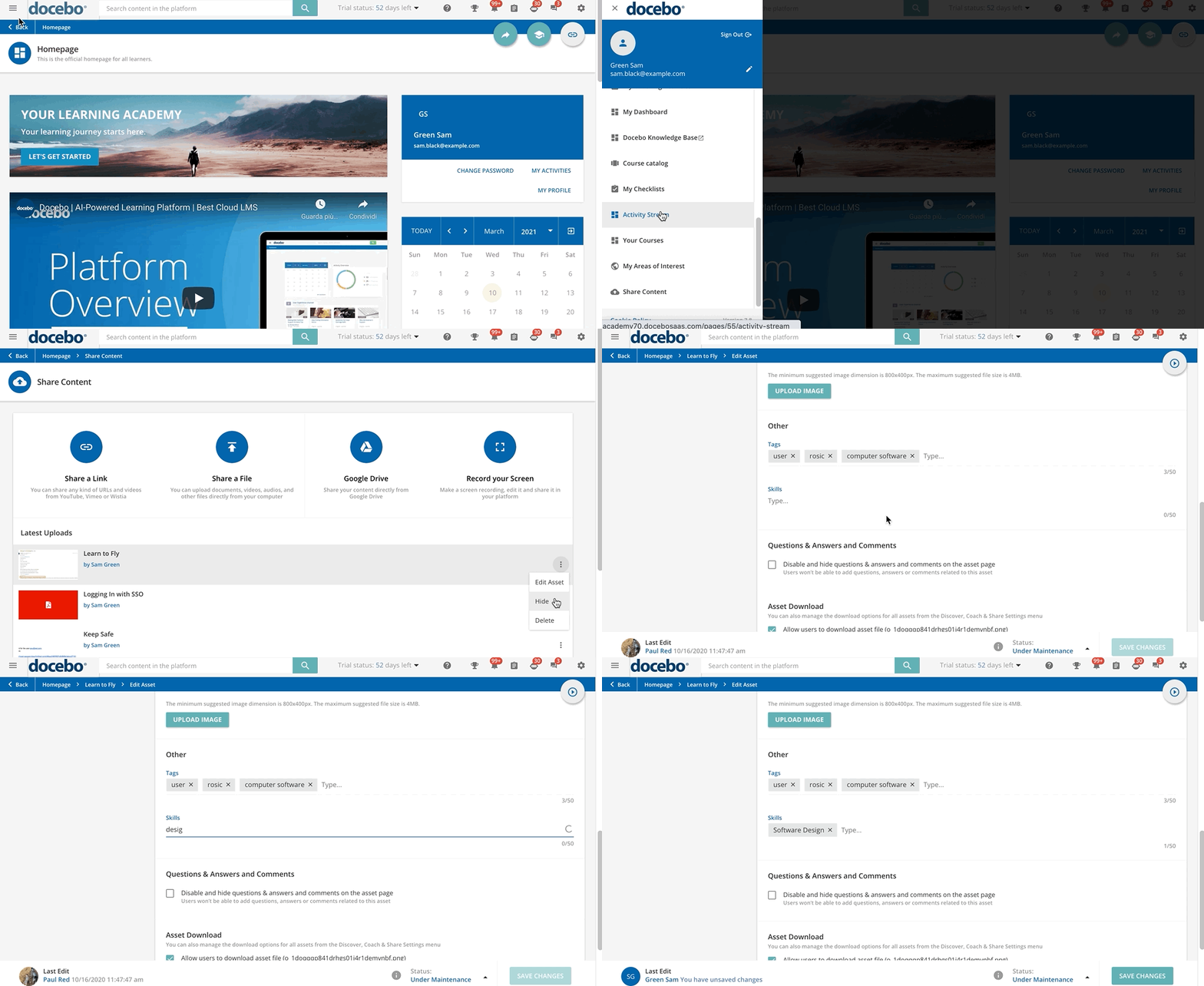
Move to the Skills area and type the name of the skills you wish to assign to the asset. You can assign up to 50 skills to each asset and 15 to each course. Remember that if you type a synonym of the main skill, the main skill is always suggested.
Furthermore, Artificial Intelligence analyzes learning content, identifying key phrases and creating tags for your skills automatically, meaning that your skills can be either entered manually or can be automatically calculated by the Artificial Intelligence and subsequently chosen. This helps make skills easier to be added to your content.
Was this article helpful?
That’s Great!
Thank you for your feedback
Sorry! We couldn't be helpful
Thank you for your feedback
Feedback sent
We appreciate your effort and will try to fix the article